SYNBOOTH / BYTEDANCE VIDEO

Seedance 2.5 AI video generator

Your idea. Your direction. Your next video.
Create with the Seedance 2.5 AI video generator on SynBooth. Explore a scene, reuse its prompt, and see your credit estimate before generating.

Create a Seedance 2.5 video on SynBooth.

Describe the subject, action, setting, and camera movement.

0/2

Live pricing is unavailable. Change a setting or reload the page to retry before generating.

One clip per generation. Review the live credit estimate, then generate. Reusing or copying a prompt does not spend credits.

Sign-in and sufficient credits are required to generate. View plans

CREATIVE DIRECTIONS

Four directions for your next video.

AI-generated concept artwork for inspiration. These still images are not Seedance 2.5 video outputs.

Build a world worth entering.

Start wide. Describe the light, atmosphere, and one clear camera move to give your scene a sense of place.
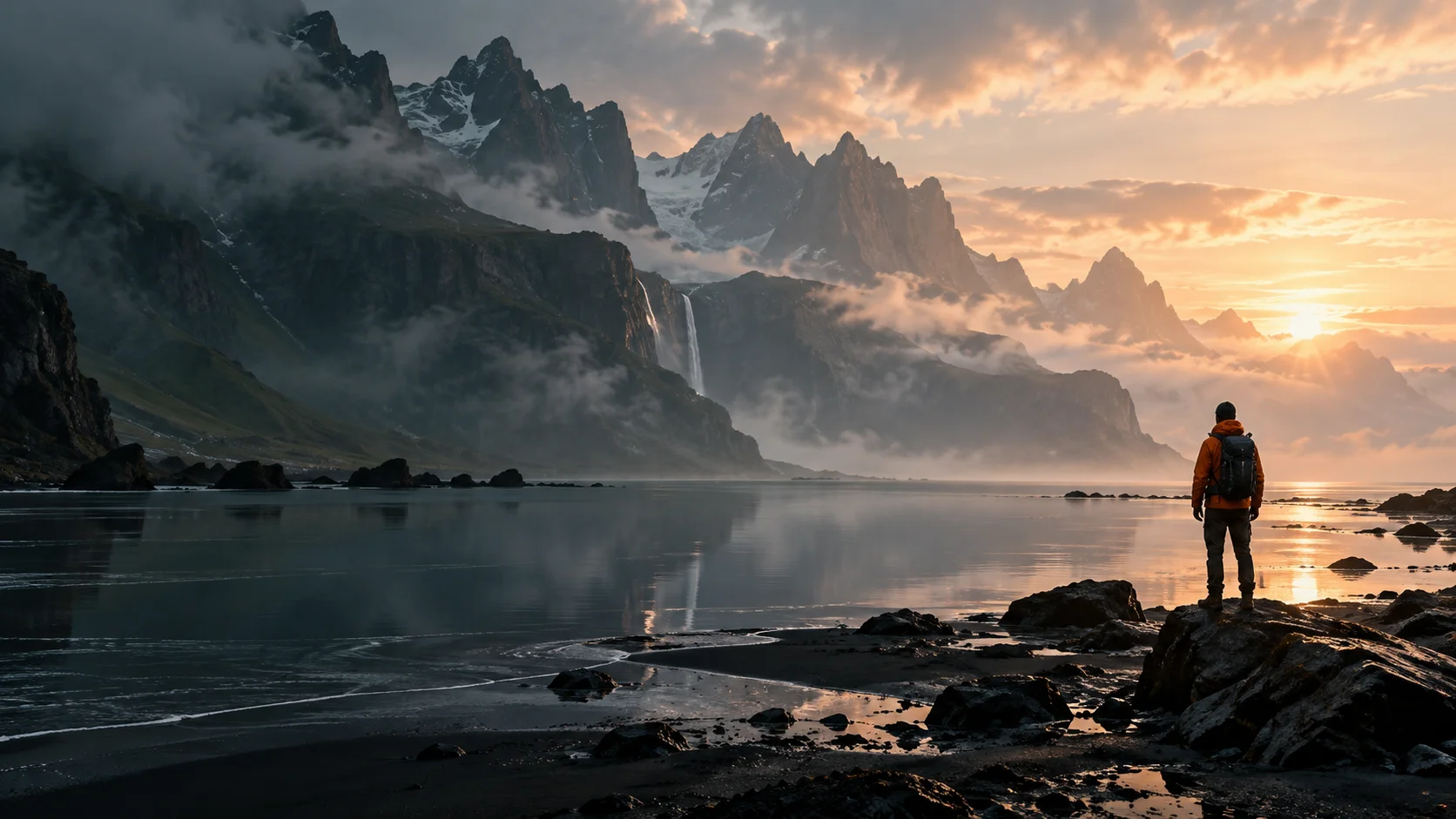
An explorer in an orange coat overlooking a misty mountain shoreline at sunrise
Build a world worth entering. AI-generated concept artwork
  • Landscape
  • Cinematic
  • Slow dolly

Video direction prompt

Slow dolly toward an explorer on a volcanic shore. Morning mist moves across the water as sunlight reaches the distant peaks.

Review tip: Check the explorer’s silhouette and the horizon as the camera advances.

Make the little things cinematic.

Explore a product concept with a close-up, tactile surfaces, and deliberate lighting.

An amber glass perfume bottle on wet volcanic stone with warm sunlight and mist
Make the little things cinematic. AI-generated concept artwork
  • Product film
  • Macro detail
  • Slow orbit

Video direction prompt

A slow orbit around an amber perfume bottle on wet stone. Warm light passes through the glass while delicate mist drifts behind it.

Review tip: Keep the bottle shape and glass reflections consistent.

Tell a story in miniature.

Explore a stylized character and a small, readable action in an imaginative world.

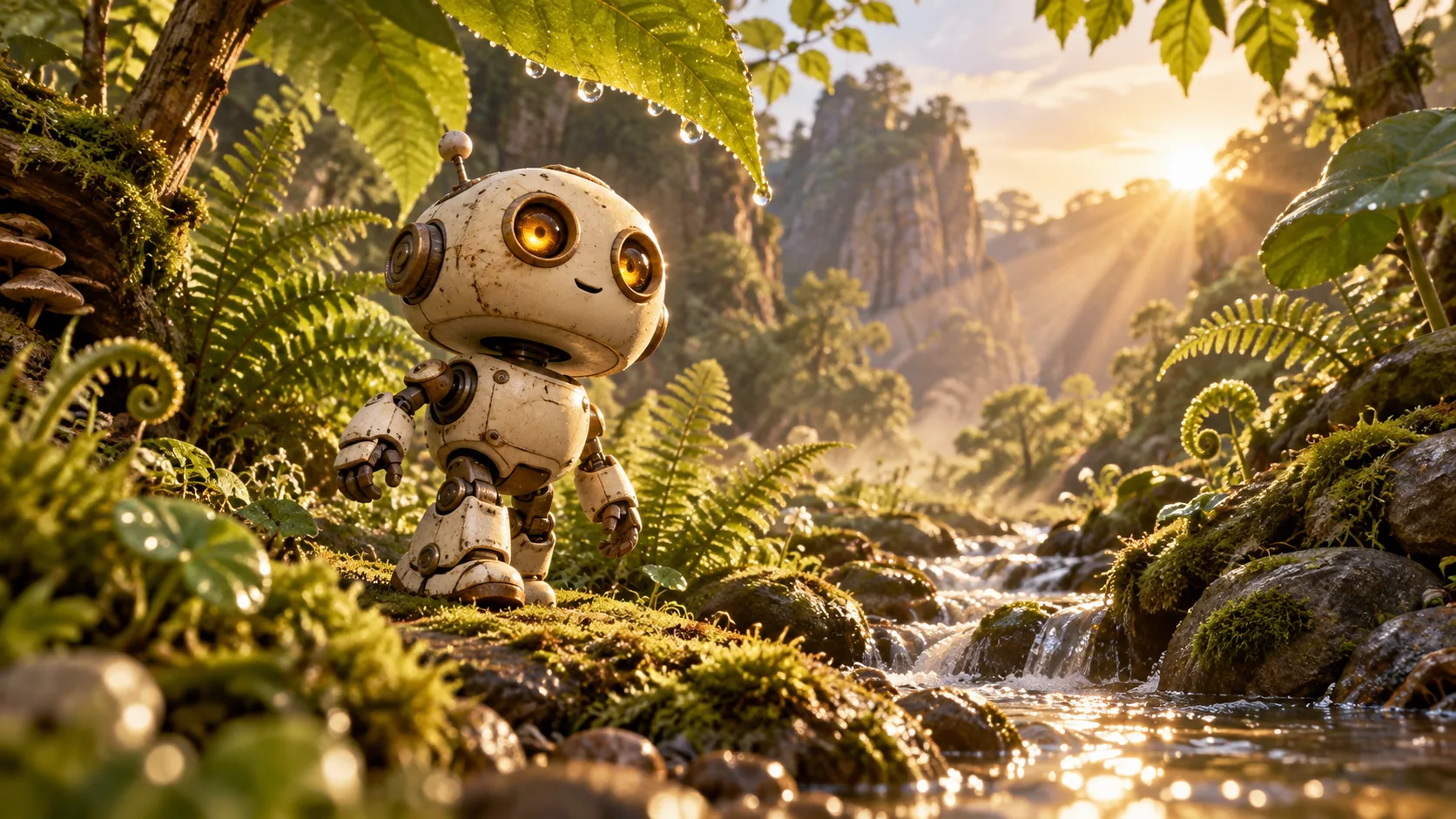
A small cream-colored robot beside a stream in a lush miniature forest
Tell a story in miniature. AI-generated concept artwork
  • Animation concept
  • Character story
  • Low angle

Video direction prompt

A tiny cream-colored robot walks beside a forest stream, then pauses to look at a dewdrop. Low camera angle, gentle morning light, handcrafted animation style.

Review tip: Keep the character design stable and the movement simple.

Put your campaign in motion.

Give an automotive concept a clear route, camera angle, and sense of pace.

An unbranded silver sports coupe on a coastal road in warm evening light
Put your campaign in motion. AI-generated concept artwork
  • Automotive
  • Campaign concept
  • Tracking shot

Video direction prompt

Track alongside a silver coupe on a coastal road at sunset. Keep the car in a steady three-quarter view as the ocean and grasses pass in the background.

Review tip: Check wheel motion, vehicle proportions, and the road perspective.

What is Seedance 2.5 on SynBooth?

A video creation model for turning a written scene into a short clip. Start with text, explore image and audio references in the workspace, and choose a 5, 10, or 15 second duration. The artwork below illustrates creative directions; it is not footage generated by Seedance 2.5.

Seedance 2.5 pricing on SynBooth

Compare the credits for one generated clip. Plan prices and generation credits are different: your plan or credit purchase supplies the balance, while each generation uses credits for its selected settings.

Verified credit examples · October 30, 2026
Resolution5 seconds10 seconds15 seconds
480p140 credits280 credits420 credits
720p315 credits630 credits945 credits
1080p570 credits1,140 credits1,710 credits

One clip, 16:9, generated audio off, and no reference uploads. These are dated examples, not a guaranteed future quote. Check the live estimate above before generating.

Budget for a few takes

At the checked 720p rate, three 5-second takes use 945 credits in total. Three 10-second takes use 1,890 credits. Choose a short draft first when you are still exploring the idea.

Each new generation is a separate attempt. Budget for variations, not just the final clip. Credits are not directly comparable across different services.

Credits and plan prices

These examples show credits, not a dollar-per-video price. Your effective money cost depends on your plan or credit purchase.

View SynBooth plans and credits
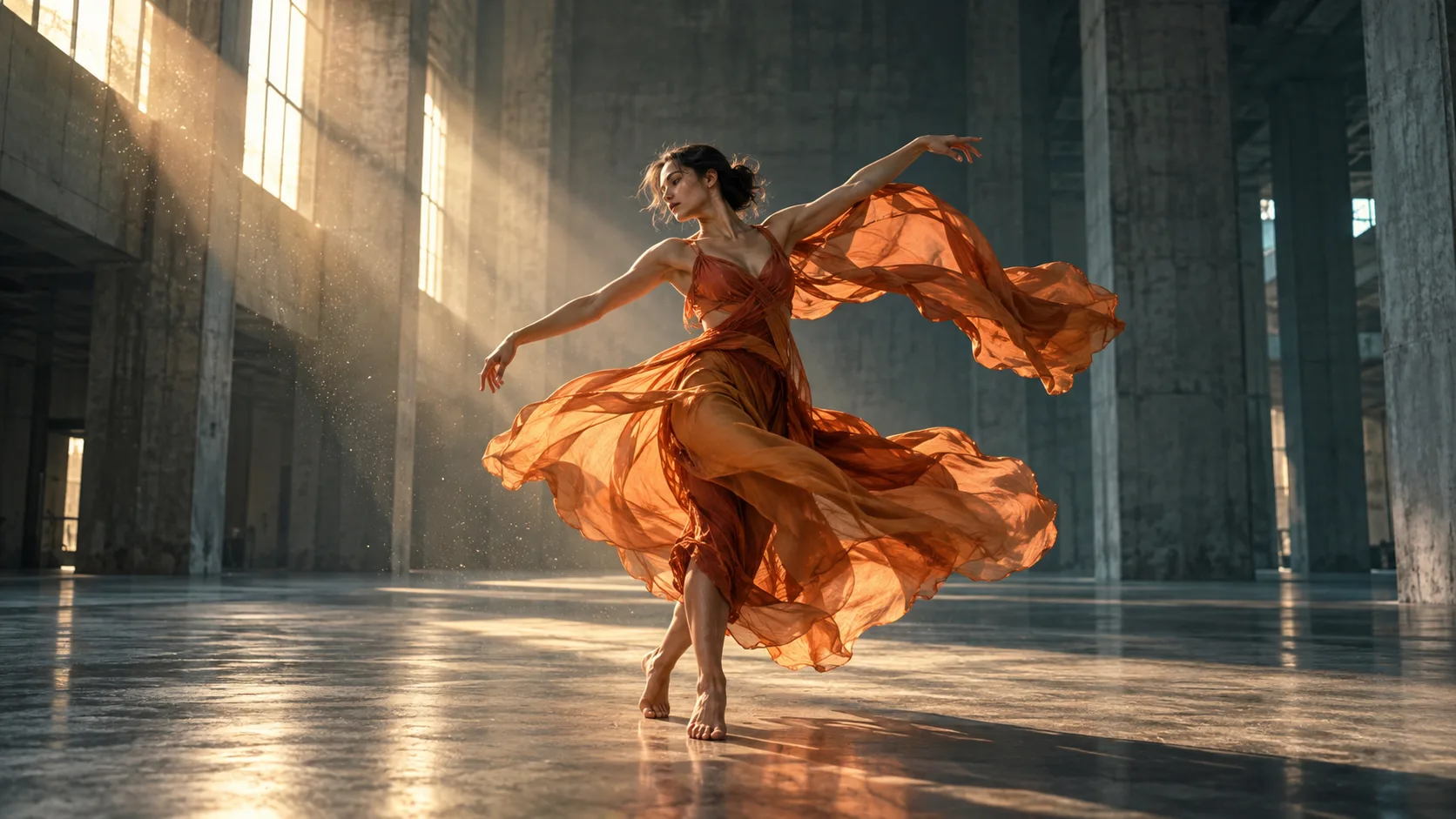
A dancer in flowing orange fabric turns inside a sunlit concrete hall
A clear action gives the scene its focus. AI-generated concept artwork
  • Dance
  • Fabric motion
  • Wide shot

Video direction prompt

A dancer in flowing orange fabric makes one slow turn in a sunlit concrete hall. Keep the full figure in view as the camera moves gently from left to right. Fine dust drifts through the window light.

Review tip: Review hands, feet, and fabric continuity.

Start with an idea. Give the scene a direction.

Describe the action you want to see, use a reference to establish the look, and refine the shot in the video workspace. Keep your first scene focused on one subject and one clear movement.

Describe the action

Write what the subject does, where the scene takes place, and how the camera should move.

Bring a visual reference

Use the available image-reference controls to communicate the subject, composition, or visual mood.

Explore audio references

Add an audio reference through the workspace when it fits your scene. Review the available audio controls before submitting.

Refine one shot at a time

Start with a short, focused clip. Adjust the prompt and settings after reviewing the result.

Choose the right starting point

These are the options in SynBooth’s current Seedance 2.5 integration. They may differ from another platform’s version of the model.

Supported Seedance 2.5 inputs on SynBooth
Starting pointUse it forAvailability
Text promptExplore a new scene without uploading a reference.Available in this page’s prompt box.
Image referencesCommunicate appearance, composition, or visual direction.Add through the video workspace.
Audio referencesProvide audio context for your scene.Add through the video workspace.
Reference videoUse an existing clip as a reference.Temporarily unavailable on SynBooth.

One generation produces a 5, 10, or 15 second clip. For a longer story, plan separate shots and assemble the chosen takes in your preferred video editor. This page does not automatically build a finished long-form video.

Shape the look, movement, and atmosphere.

Use these visual directions to plan your prompt and references. Select a topic to see its accompanying concept artwork.

Establish a visual starting point
A character reference can communicate appearance, wardrobe, and mood. Describe the intended action separately, and review the output for changes in facial or clothing details.
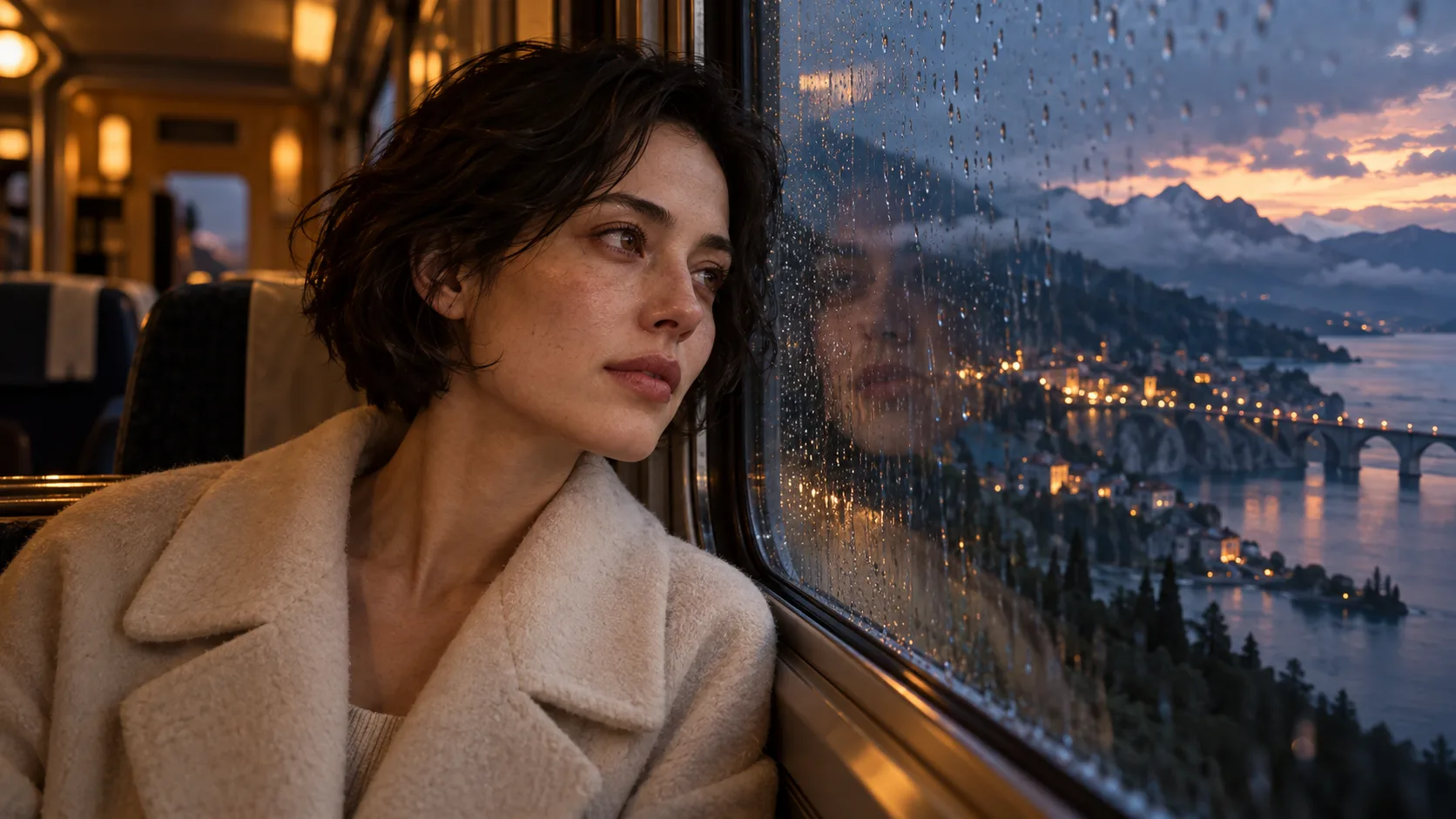
A short-haired woman in a cream coat beside a rain-speckled train window
Use a reference to communicate the look. AI-generated concept artwork
  • Portrait
  • Natural light
  • Slow push-in

Video direction prompt

An adult woman with short dark hair sits beside a rain-speckled train window at dusk. Slowly push in as she turns toward the passing landscape. Warm cabin light and cool evening reflections.

Review tip: Check facial details and the reflection throughout the take.

Describe one deliberate camera move
Try a slow push-in, a tracking shot, or a restrained orbit. Name the subject and keep the movement clear rather than asking for several unrelated shots at once.
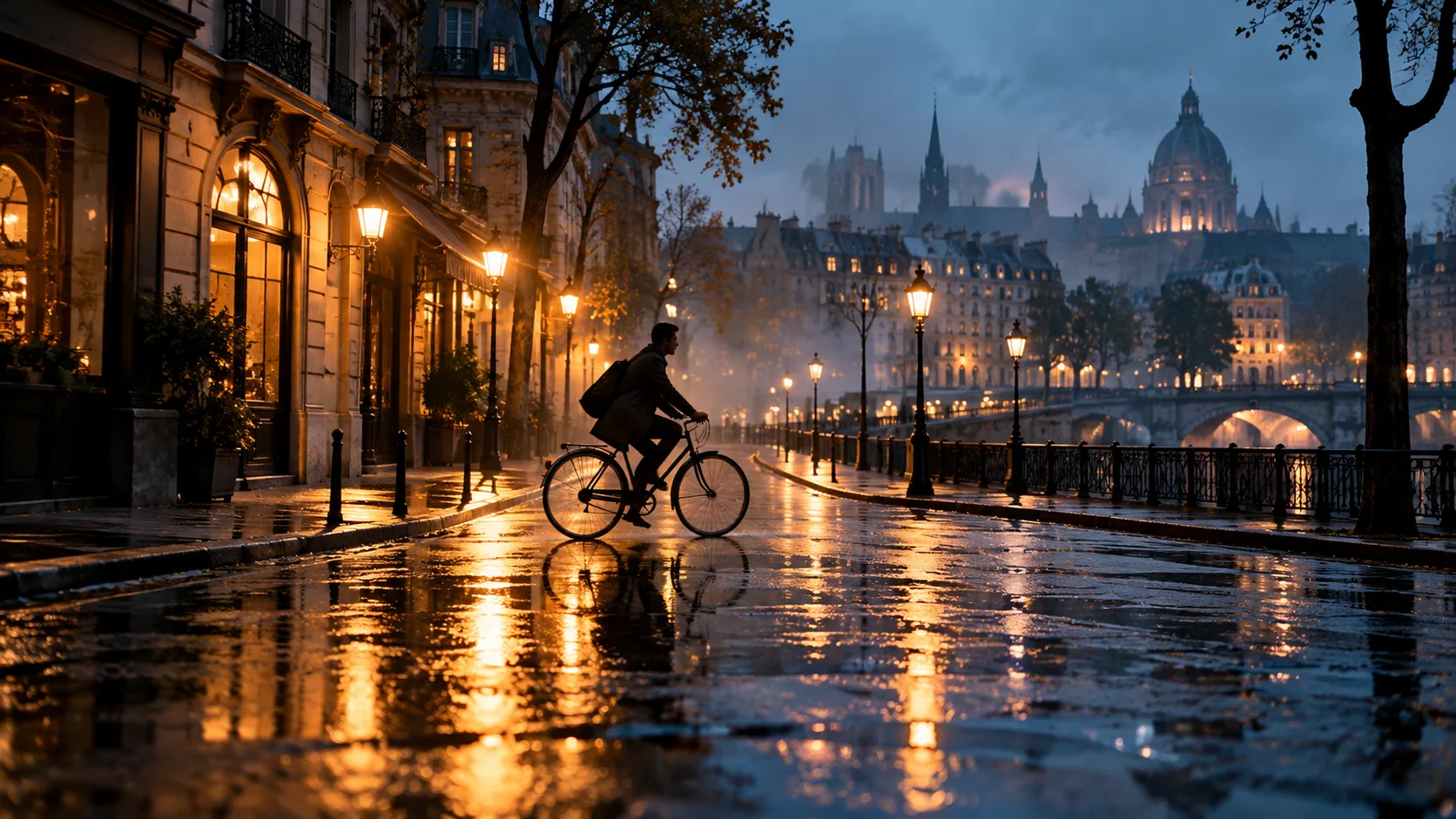
A cyclist crosses a rain-soaked city street at blue hour
One camera move, one readable action. AI-generated concept artwork
  • Street scene
  • Blue hour
  • Tracking shot

Video direction prompt

Track a cyclist crossing a rain-soaked city street at blue hour. Warm lamps reflect in the pavement, distant buildings fade into mist, and the camera stays at street level.

Review tip: Check bicycle geometry and the direction of travel.

Plan the scene with sound in mind
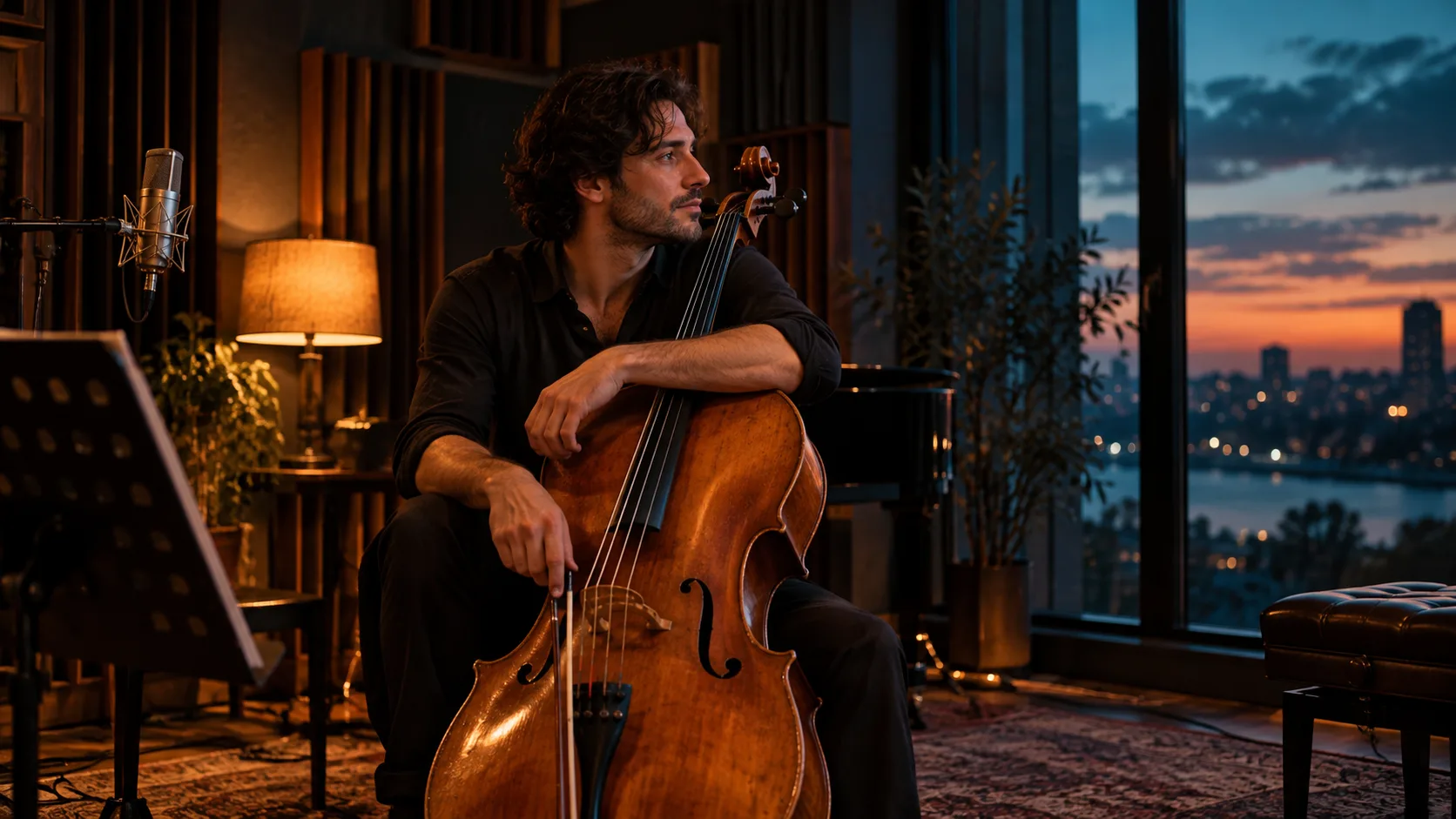
Use the available audio reference and generation controls in the workspace. Decide whether the scene needs dialogue, ambience, or music, then review the resulting audio alongside the picture.
A cellist rests with a wooden cello in a warmly lit recording studio
Plan sound alongside the picture. AI-generated concept artwork
  • Music scene
  • Warm studio
  • Gentle push-in

Video direction prompt

An adult cellist rests between takes in a warmly lit recording studio. The camera gently pushes toward the instrument as the musician looks toward the window. Subtle room ambience, calm pacing.

Review tip: Listen to the audio if enabled and inspect the musician’s hands.

How to write a useful Seedance 2.5 prompt

Give the model a shot to interpret, then change one variable at a time. This structure works as a starting point for your own scenes.

Subject + action + setting + camera movement + lighting + sound

Too vague

Make a cinematic video of a car.

More directed

Track a silver coupe along a coastal road at sunset. Keep a steady three-quarter view as grasses move past the camera. Warm reflections on the bodywork, natural motion, restrained pacing.

Keep one action in focus

A turn, a glance, or a camera move is easier to evaluate than several unrelated events in one short clip.

Choose the frame for the destination

Try 16:9 for a landscape sequence, 9:16 for a vertical concept, or 1:1 for a square composition. Keep the subject away from edges if you plan to crop.

Separate the draft from the final

Explore the idea with a short clip, review the result, then decide whether another take or a different resolution is worth the credits.

FROM IDEA TO VIDEO

From your first prompt to the next take.

A simple workflow for exploring a scene without losing track of your creative direction.

1

Write the scene

Describe the subject, action, setting, light, and camera movement. Keep the first prompt focused.

2

Choose the setup

Select duration, resolution, and aspect ratio, then choose whether to generate audio. Review the estimate for that exact setup.

3

Review the cost

Confirm the live credit estimate beside Generate video. Copying or loading an example prompt does not spend credits.

4

Review and refine

Check motion, visual details, and sound. Change one part of the prompt to explore the next take.

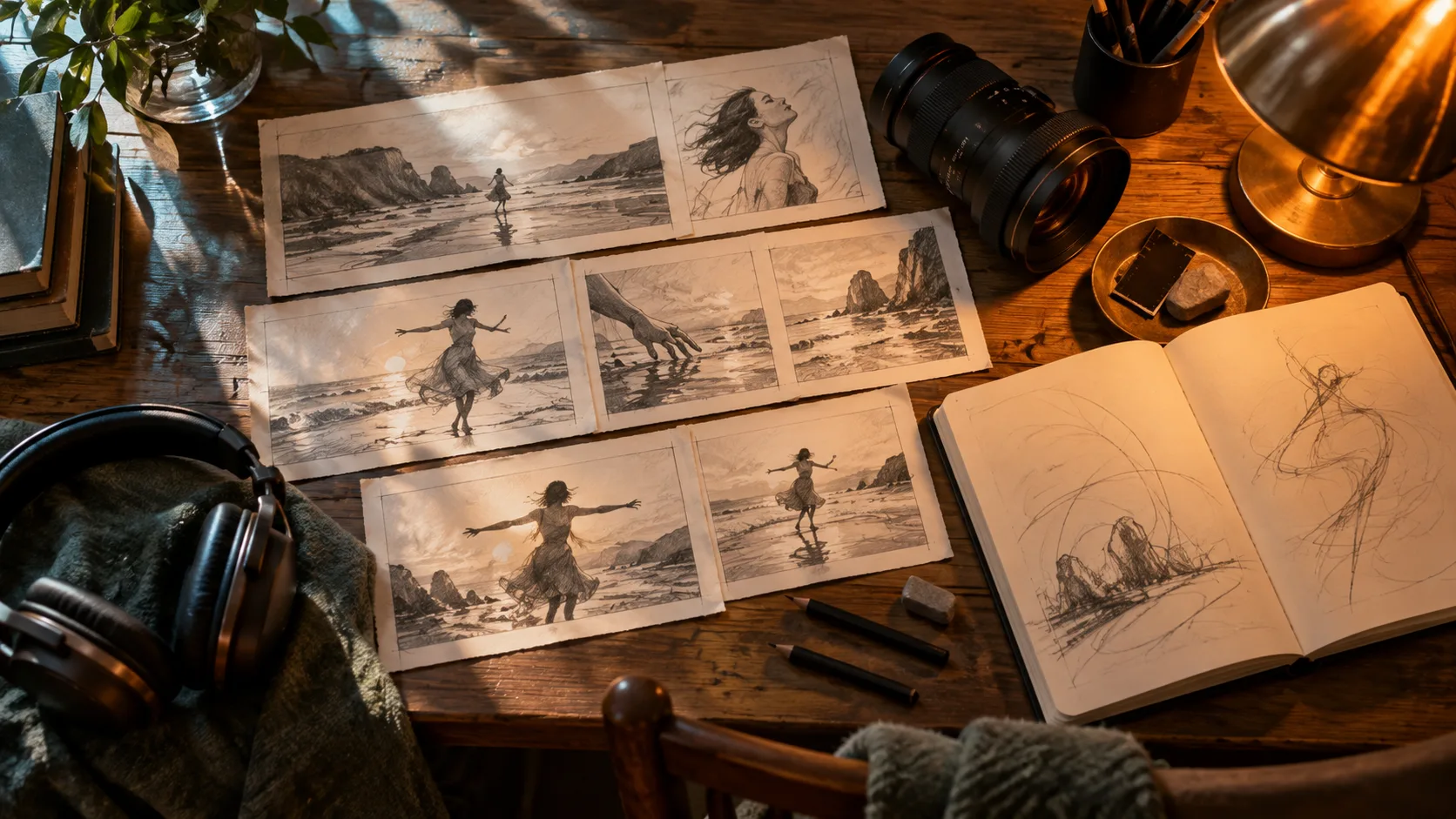
A filmmaker’s desk with pencil storyboards, a camera lens, headphones, and a notebook
Plan the shot before generating. AI-generated concept artwork
  • Creative process
  • Overhead
  • Slow slide

Video direction prompt

A slow overhead camera slide across a filmmaker’s desk with pencil storyboards, a camera lens, headphones, and an open sketchbook. Warm desk-lamp light, soft shadows, no readable text.

Review tip: Check objects and sketch details for unexpected changes.

Close-up of a ceramic artist’s hands shaping the rim of a clay bowl
Small details deserve a closer look. AI-generated concept artwork
  • Craft
  • Macro
  • Fixed camera

Video direction prompt

Close-up of a ceramic artist carefully shaping the rim of a wet clay bowl on a slowly turning pottery wheel. Hold a steady camera, warm side light, tactile clay and natural hand movements.

Review tip: Inspect fingers, bowl edges, and rotation frame by frame.

Good direction includes a careful review.

Use generated clips as creative material to inspect and refine. These practical checks help you decide whether a take is ready to use.

Inspect fine details

Review hands, faces, small objects, and any visible lettering throughout the clip.

Check continuity

Look for changes in a subject’s appearance, object shape, or background as the shot moves.

Reference video is unavailable

The current SynBooth integration temporarily disables reference-video uploads. Use the supported text, image, and audio options instead.

Keep room for editing

A generated take may need trimming, sound adjustments, or another iteration before it fits your project.

Why create with Seedance 2.5 on SynBooth?

Explore prompts, compare settings, and check your credit cost in one SynBooth workflow.

A direct starting point

Every concept image has an editable video prompt. Use it without submitting a generation, then make it your own.

Settings in context

Use the model’s available controls to choose duration, references, and other supported options.

An estimate for your setup

The workspace calculates a credit estimate for the settings you select.

Seedance 2.5 settings on SynBooth.

The current integration at a glance. Available controls and credit estimates are shown in the video workspace.

5, 10, or 15 seconds

Choose the duration that fits your shot. The landing-page shortcut uses 10 seconds.

480p, 720p, or 1080p

Select the output resolution in the form. A different resolution changes the credit estimate; it does not guarantee a particular artistic result.

Six frame formats

Choose 1:1, 21:9, 4:3, 3:4, 16:9, or 9:16. The default is 16:9.

Image references

Use the model’s supported image-reference inputs to guide your scene.

Audio controls

Explore supported audio references and audio-generation settings in the workspace.

Settings-based credits

Compare the verified examples below and use the live estimate before you generate.

Seedance 2.5 on SynBooth: pricing, prompts, and inputs

What is Seedance 2.5 on SynBooth?

Seedance 2.5 is a video model available in the SynBooth creation workspace. You can start from a text prompt and use the reference controls available for the model.

Which clip lengths can I choose?

SynBooth currently offers 5, 10, and 15 second clips. Choose 480p, 720p, or 1080p and one of six frame formats. The default is 10 seconds, 720p, and 16:9.

Can I use reference images or audio?

Image and audio reference support is available in the current integration. Use the video workspace to see the available upload controls. Reference video uploads are temporarily unavailable.

How many credits does a video cost?

In the October 30, 2026 check, a 5-second 720p clip cost 315 credits and a 10-second 720p clip cost 630 credits, with audio generation off and no references. The table shows more examples. The live estimate for your settings is the one to review before submitting.

Were these images generated with Seedance 2.5?

No. The illustrations on this page are AI-generated concept artwork, created to suggest visual directions. They are not examples of video output from Seedance 2.5.

Does Use this prompt immediately generate a video?

No. It fills the editable prompt box and applies the example settings. Copying or loading a prompt does not submit a generation or spend credits. Generate video is a separate action.

Can I create a matching video from these images?

The still images are concept artwork made with a separate image tool. Their video prompts suggest a direction; they are not exact reproduction instructions or verified Seedance outputs. You can edit each prompt before generating.

Is Seedance 2.5 free on SynBooth?

You can browse the examples and prepare a prompt without generating. Video generation requires sign-in and sufficient credits. See SynBooth’s pricing page for current plans and credit options.

Can I make a full-length video in one generation?

This integration creates clips up to 15 seconds. Plan a longer video as separate shots and edit the selected clips together in your preferred editor.

What should I do if a result has odd motion or changing details?

Simplify the action, use a shorter shot, and change one prompt detail at a time. Review hands, faces, object shapes, and audio before using a result. Additional generations are separate attempts with their own credit cost.

Can I use any image or audio as a reference?

Use materials you own or have permission to use, including permission for a person’s likeness or voice where needed. Review the applicable terms before publishing commercial work.

Create your next scene on SynBooth.

Start from a prompt. Check the credits. Make the next take yours.

Explore more on SynBooth: AI video generator · Kling 3 · Wan 2.6

Seedance 2.5 Video Generator: Pricing & Prompts | SynBooth